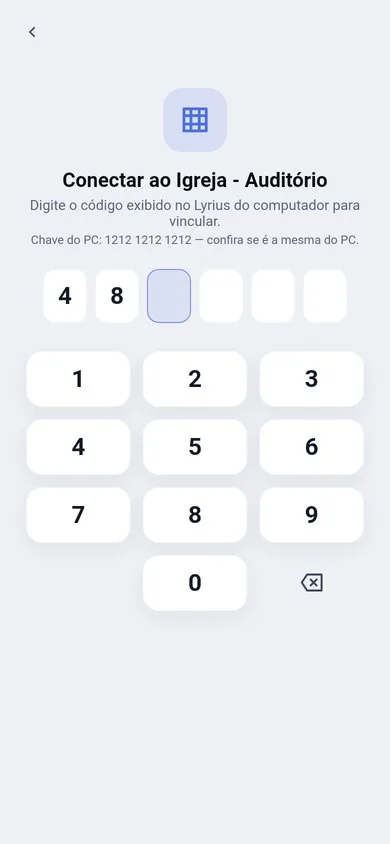
The Lyrius phone app controls the PC over the local network, fully encrypted.
First time
- 1On the PC: Settings › Remote control › "Accept phones" turned on.
- 2"Connect phone" shows a QR code and a 6-digit code.
- 3On the phone: open Lyrius, name the device and pick the computer from the list (or scan the QR code).
- 4Type the 6-digit code. Done: the phone shows up on the PC’s list.
Next time, the phone reconnects by itself.
Can’t find the PC?
- The phone and the PC must be on the same network. Some routers keep 2.4 GHz Wi-Fi apart from 5 GHz or from the cable — try the same band.
- On the PC: Settings › Remote control › Network and firewall › "Allow" (the Windows firewall often blocks "Public" networks).
- On the phone: "Other ways" › type the address shown on the PC, or open the Network diagnostics, which tells you what is wrong.
Closed Lyrius on the PC?
The phone tells you right away ("Lyrius was closed") and stops trying. Only a network drop makes the phone try to reconnect by itself.
Screen off
The phone stays connected with the screen off or another app open (on Android you see the "Connected to …" notification). Only closing the app disconnects; open it again and it reconnects by itself.
On iPhone the system pauses the app in the background: when you come back, it reconnects right away.