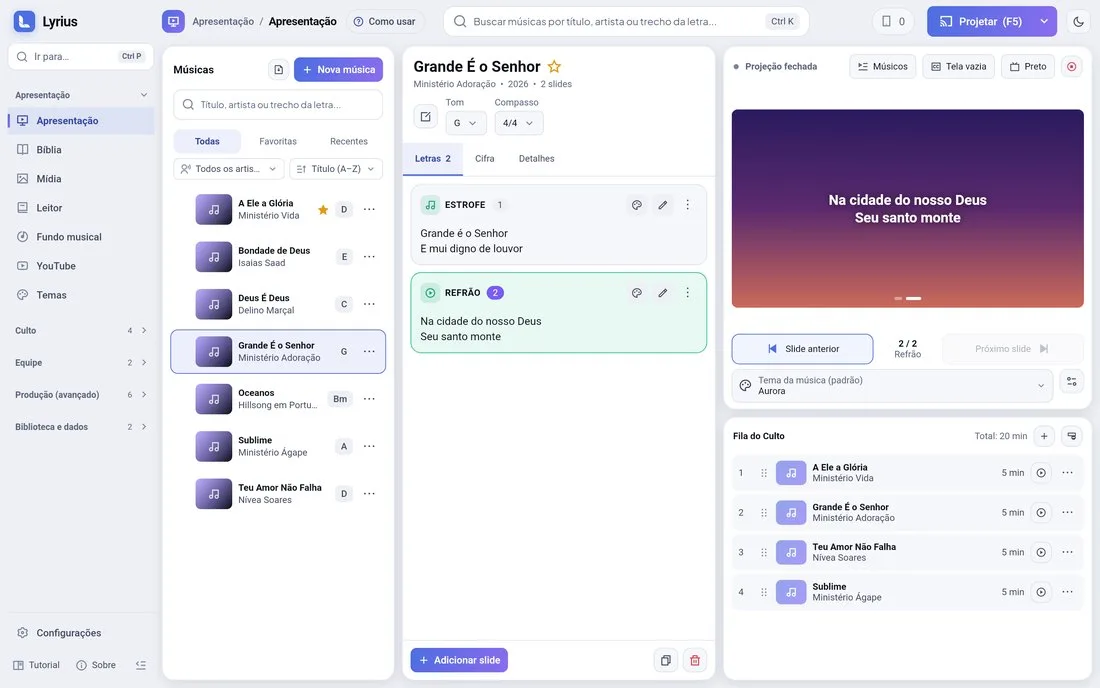
The Presentation page is where the service happens. It has three parts, with dividers you can drag (double-click resets them):
- Left: the song library and the Service queue.
- Middle: the slides of the open song (or the editor).
- Right: the projection panel, which shows what is on screen right now.
Projecting
- 1Click a song in the library: it only opens (nothing changes on screen).
- 2Click a slide to select it; double-click it (or press Enter) to put it on screen. Double-clicking a song projects its first slide and opens the projection screen if it is closed.
- 3Use the right and left arrows (or PgDn / PgUp) to move. Home goes to the first slide and End to the last.
The screen buttons
- Black (B or .): hides everything. Good for prayers and transitions.
- Clear (F9): removes the text and keeps only the theme background.
- Live: shows the text again.
- End (Esc): ends the presentation; the screen shows the wallpaper.
- The "Project (F5)" button at the top opens and closes the projection screen. While open it turns into "Live · Stop" with a red dot; the arrow next to it picks the monitor.
Made a mistake? Undo it
Ctrl+Z undoes the last change on screen (slide, black screen, end...). Actions that could disrupt the service ask for confirmation while it is live.
Tip: the "Musicians" button on the projection panel opens the musicians’ screen, with ready-made messages ("Repeat the chorus", "One more time"...) and free text.